

A static proxy is an upstream endpoint whose public exit IP is intended to remain stable. Clash Verge Rev does not provide that endpoint; it uses the Mihomo core to route applications through credentials supplied by your proxy provider or network administrator. Use only proxies you are authorized to access.
Keep credentials private. A local Clash profile stores usernames and passwords as plain text, so never paste a real profile into screenshots, public repositories, online YAML converters, or shared support messages.
What you need before you start
- Protocol: HTTP, HTTPS, or SOCKS5.
- Proxy hostname or IP address, port, username, and password.
- Whether TLS is required and whether the SOCKS5 endpoint supports UDP.
- A current Clash Verge Rev installation and permission to enable System Proxy or TUN where needed.
Understand the two endpoints
The remote static proxy is the upstream endpoint, such as proxy.example.com:8080. The local mixed-port is opened by Mihomo on your computer. Applications connect to 127.0.0.1:7890, then Mihomo forwards selected traffic to the remote proxy.
Generate a profile from your connection details
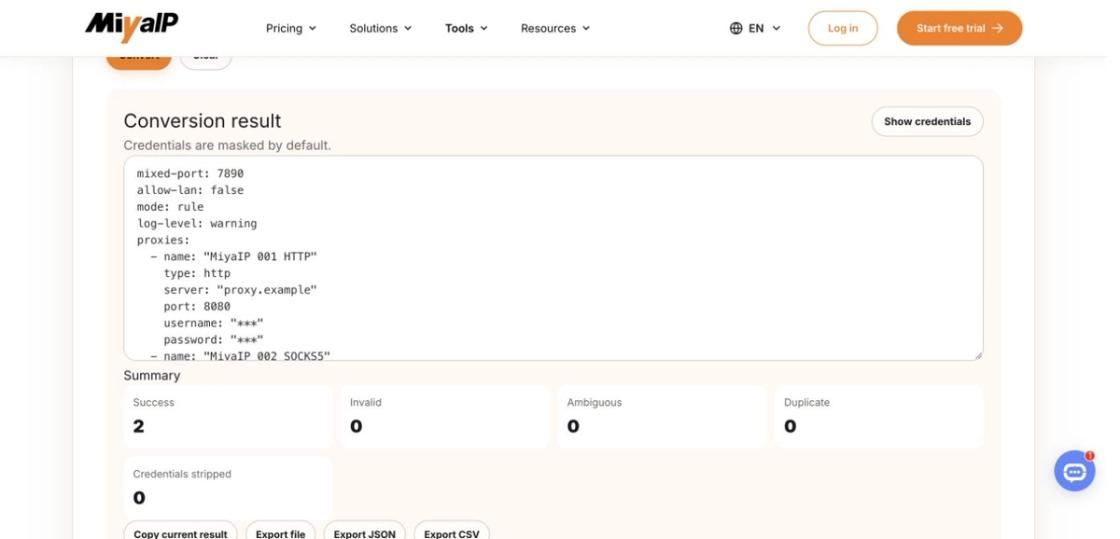
For a standard endpoint list, use the Proxy Format Converter to create a complete Clash / Mihomo YAML profile.
Copy the actual endpoint fields
Paste an entry that includes the endpoint’s actual protocol, server, port, and authentication fields.
Convert to Clash YAML
Choose Clash / Mihomo YAML, convert the entry, and resolve any reported errors.
Export with credentials
Select Export file and confirm credential inclusion when prompted.
Import and select your endpoint
Import the file in Clash Verge Rev and select your endpoint in the MiyaIP Proxy group.
The manual example below uses a group named PROXY. The converter uses MiyaIP Proxy. Select the group named in the rules of the profile you actually imported.

MIYAIP detail | YAML field | What to check |
|---|---|---|
Endpoint protocol | type | Use http for an HTTP node or socks5 for SOCKS5. |
Remote host and port | server, port | Copy the provider endpoint, not the local mixed port. |
Proxy username and password | username, password | Use the endpoint credentials rather than your website login. |
TLS requirement | tls for an HTTP node | Enable it for a documented HTTPS proxy endpoint. |
Configure and verify the connection
1. Create an HTTP or HTTPS profile
Create a UTF-8 file named static-proxy.yaml. Replace only the sample endpoint and credentials with authorized values.
mixed-port: 7890
allow-lan: false
mode: rule
log-level: info

proxies:
  - name: Static-HTTP
    type: http
    server: proxy.example.com
    port: 8080
    username: 'your_username'
    password: 'your_password'
    tls: false

proxy-groups:
  - name: PROXY
    type: select
    proxies:
      - Static-HTTP
      - DIRECT

rules:
  - MATCH,PROXY
Set tls: true only when your provider documents an HTTPS proxy endpoint. Leave certificate verification enabled.
2. Adapt the node for SOCKS5 when required
Replace the proxy item and the group member with the following values. Enable UDP only when both the provider and endpoint support it.
- name: Static-SOCKS5 type: socks5 server: proxy.example.com port: 1080 username: 'your_username' password: 'your_password' udp: false3. Import and activate the profile
Open Profiles or Subscriptions, create or import a Local profile, select static-proxy.yaml, save it, and use the profile so it becomes active.
4. Select the upstream node
Open Proxies, expand the PROXY group, and select Static-HTTP or Static-SOCKS5. The name in proxy-groups must exactly match the name under proxies.
5. Enable local routing
Start with System Proxy. Applications that ignore the operating-system proxy can be configured to use 127.0.0.1:7890. Use TUN only when wider routing is required and you understand its system permissions and impact.
6. Verify the route
Run the node availability test, open a reputable IP-check page, compare the reported exit with the assigned static IP, and inspect Connections to confirm the request matched the PROXY group.
Troubleshooting order
No node appears after import
Check YAML indentation, use spaces rather than tabs, and confirm the node name is identical in proxies and proxy-groups. Save and reactivate the profile after every edit.
Authentication fails
Re-copy the credentials, keep YAML-sensitive values quoted, and confirm the provider has not restricted access to another source IP.
The browser works but another app does not
The application may ignore System Proxy. Point its HTTP or SOCKS setting to 127.0.0.1:7890 or test TUN after confirming the wider routing requirement.
Security checklist
- Keep allow-lan disabled unless other trusted devices must reach the local listener.
- Restrict local profile file permissions and remove profiles after credentials are rotated or revoked.
- Use TLS where supported, protect credentials, and do not disable certificate verification as a routine fix.
- A stable exit supports allowlisting and session continuity; it does not grant access or make traffic anonymous.
Frequently asked questions
Can Clash Verge Rev use a normal static proxy?
Yes. Add an authorized HTTP, HTTPS, or SOCKS5 endpoint as an outbound proxy in a local Mihomo profile.
What is mixed-port 7890?
It is a local listener on your computer that accepts HTTP(S) and SOCKS5 client traffic before Mihomo forwards it to the selected upstream.
Should I enable System Proxy or TUN?
Start with System Proxy because it is easier to inspect. Use TUN only for applications that need wider routing and after reviewing the required permissions.
Why does the exit IP not change?
Confirm the intended profile and node are active, enable System Proxy or TUN, and disable competing VPN or proxy extensions while testing.
Does a successful delay test prove every app uses the proxy?
No. It proves the upstream is reachable. Verify the exit IP and inspect Connections for the specific application request.
Configure one verified static residential proxy
Choose an authorized endpoint, verify its exit and location, and start with one controlled profile before scaling.
Sources
MIYAIP Proxy Format Converter — official local conversion tool, accessed 19 October 2026.